






Custom Message Boxis simple and modern library to create custom dialog boxes with CustomTkinter. It allows you to easily retrieve user responses (inputs, confirmations, multiple choices) without having to deal with complex classes.
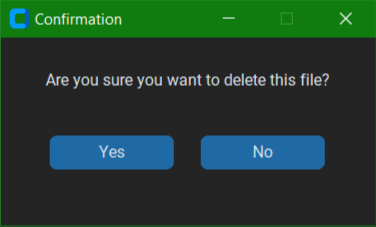 .
.
- Information & Error: Simple notification boxes.
- Yes/No: Confirmation dialog boxes.
- Entry: Dialog boxes with text input.
- Custom: Dialog boxes with 2 customized buttons.
Make sure you have CustomTkinter installed:
pip install customtkinterInstall the library:
pip install Custom-message-boxOr download the script.
Quick start guide:
- Information Message
custom_message_box.ctkinfo("Title", "Operation successful!")- Error Message
custom_message_box.ctkerror("Warning", "Connection lost.")- Confirmation Window Returns 1 for Yes and 0 for No.
response = custom_message_box.ctk_msg_yesno("Exit", "Do you really want to leave?")- Text Input Returns the entered string.
username = custom_message_box.ctk_msg_entry("Username", "Enter your name:", "e.g., John")- Custom Buttons Returns the text of the clicked button.
choice = custom_message_box.ctk_msg_custom("Menu", "Choose an option:","Play", "Options", "Exit")import custom_message_box.cmb as cmb
# 1. Test Entry
entry_response = cmb.ctk_msg_entry("Title", "Enter something:", "Placeholder")
print(entry_response)
# 2. Test YesNo
yesno_response = cmb.ctk_msg_yesno("Confirm", "Are you sure?")
print(yesno_response)
# 3. Test Custom (Title, Message, Text1, Text2)
custom_response = cmb.ctk_msg_custom("Choice", "Select one:", "Option 1", "Option 2")
print(custom_response)
# 4. Test Info
cmb.ctkinfo("Info", "Everything is OK!")
# 5. Test Error
cmb.ctkerror("Danger", "Something went wrong!")Good programing !