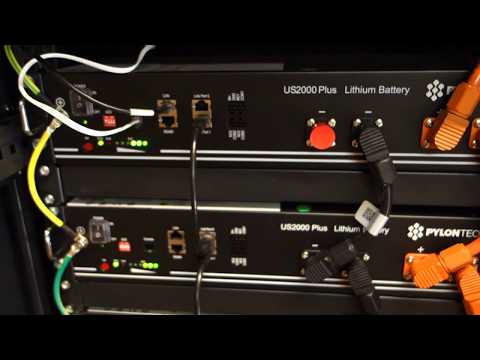
An open-source, low-cost WiFi and MQTT monitoring bridge for Pylontech lithium-iron-phosphate (LiFePO4) solar battery stacks (such as US2000B, US2000C, US3000, US3000C, US5000, and UP2500).
Built on an ESP8266 (Wemos D1 Mini) and a MAX3232 RS-232 level transceiver, this project connects directly to the battery's RS-232 console port. It decodes native BMS telemetry, publishes live data to your MQTT broker with automatic Home Assistant Auto-Discovery, and provides an embedded responsive web console and JSON REST API.
Forked and enhanced from irekzielinski/Pylontech-Battery-Monitoring.
Warning
Disclaimer: Use this firmware and hardware schematic at your own risk. Always verify cable pinouts and supply voltages before connecting to your battery BMS console.
- Key Features
- Supported Batteries
- Hardware Requirements & Schematics
- Getting Started & Flashing
- Configuration Parameters (PylontechMonitoring.h)
- Home Assistant Integration
- Web Interface & JSON Telemetry
- Demonstration Video
- Ultra Low Cost: Built with standard off-the-shelf components (~$15-$20 total).
- Native BMS Telemetry: Interrogates the Pylontech Console port directly to extract individual cell voltages, BMS temperatures, state of charge (SoC), currents, and health flags.
- Home Assistant Zero-Conf: Fully automated MQTT Auto-Discovery creates device cards and individual battery sensors instantly.
- Home Assistant Energy Dashboard Ready: Exposes continuous power in/out sensors, easily integrated into cumulative kWh sensors.
- Multi-Battery Stack Support: Handles multi-battery configurations connected in master/slave daisy chains.
- Built-in Web Interface:
- Real-time battery status overview.
- Interactive serial console to run raw BMS diagnostic commands over WiFi without a PC.
- Direct reboot button and JSON telemetry endpoint (
/data) for easy integration with Node-RED, InfluxDB, or Grafana.
- OTA Firmware Updates: Flash new firmware wirelessly over your local WiFi network.
- Flexible Networking: Supports both dynamic DHCP and Static IP assignment, plus optional HTTP Basic Authentication.
| Battery Family | Console Connector | Baud Rate | Tested Models |
|---|---|---|---|
| Pylontech US2000 Series | RJ10 (4P4C) / RJ45 (8P8C) | 115200 bps | US2000B, US2000C |
| Pylontech US3000 Series | RJ45 (8P8C) | 115200 bps | US3000, US3000C |
| Pylontech US5000 Series | RJ45 (8P8C) | 115200 bps | US5000 |
| Pylontech UP Series | RJ45 (8P8C) | 115200 bps | UP2500 |
Note: For battery stacks with multiple units, always connect the cable to the Master unit (the module connected to the inverter or with address ID 1).
- Microcontroller: Wemos D1 mini (ESP8266) or compatible ESP-12F / NodeMCU board.
- RS-232 Transceiver: SparkFun MAX3232 Breakout (or standard 3.3V-compatible MAX3232 board).
[!IMPORTANT] Do not connect ESP8266 GPIO pins directly to the Pylontech console port! The Pylontech console uses true RS-232 voltage levels (+/-12V) which will permanently damage 3.3V microcontroller inputs without a MAX3232 level transceiver.
- Filter Capacitors:
- C1: 10 uF (electrolytic or tantalum)
- C2: 0.1 uF / 100 nF (ceramic)
- Recommended: Place in parallel between 3.3V and GND to absorb ESP8266 Wi-Fi transmission power spikes and prevent brownout resets.
- Console Cable:
- US2000B: 4-wire RJ10 connector cable (ensure all 4 wires/pins are present).
- US2000C / US3000C / US5000 / UP2500: Standard RJ45 (8P8C) ethernet patch cable.

| Signal Function | Wemos D1 Mini | MAX3232 Logic (TTL) | MAX3232 RS-232 | US2000B (RJ10) | US2000C / US3000C / US5000 (RJ45) | Wire Color (T-568B) | Notes |
|---|---|---|---|---|---|---|---|
| Power (+3.3V) | 3V3 |
VCC |
— | — | — | — | Regulated 3.3V DC (stabilized with C1 & C2) |
| Ground (0V) | G (GND) |
GND |
GND |
Pin 4 | Pin 8 | Brown | Common 0V reference |
| ESP TX -> Battery RX | TX (GPIO1) |
T1 IN |
T1 OUT |
Pin 2 | Pin 6 | Green | UART 115200 baud (Console In) |
| Battery TX -> ESP RX | RX (GPIO3) |
R1 OUT |
R1 IN |
Pin 3 | Pin 3 | White-Green | UART 115200 baud (Console Out) |
| Microcontroller 5V | Micro-USB |
— | — | — | — | — | Standard 5V USB power adapter (>= 1A) |
- Pin 1: Not Connected (N/C)
- Pin 2: Console RX <- MAX3232
T1 OUT - Pin 3: Console TX -> MAX3232
R1 IN - Pin 4: GND <-> System GND
- Pins 1, 2, 4, 5, 7: Not Connected (N/C)
- Pin 3 (White-Green): Console TX -> MAX3232
R1 IN - Pin 6 (Green): Console RX <- MAX3232
T1 OUT - Pin 8 (Brown): GND <-> System GND

- Hardware Preparation:
- Assemble the circuit on a breadboard or perfboard according to the Wiring Schematic.
- Double check that 3.3V power, GND, TX, and RX are properly matched.
- Setup Arduino IDE:
- Install Arduino IDE.
- Add the ESP8266 board package:
http://arduino.esp8266.com/stable/package_esp8266com_index.jsonunder Preferences -> Additional Boards Manager URLs. - Select Tools -> Board -> ESP8266 Boards -> LOLIN(WEMOS) D1 R2 & mini.
- Install Dependencies:
- Copy the libraries located in the
librariesdirectory of this repository into your local Arduino libraries folder.
- Copy the libraries located in the
- Configure & Flash:
- Open
PylontechMonitoring.inoin Arduino IDE. - Customize settings in
PylontechMonitoring.h(WiFi credentials, MQTT broker details, battery model count). - Compile and flash via micro-USB.
- Open
- Connect to Battery:
- Plug the RJ10/RJ45 cable into the Master battery's Console port.
- Power the Wemos D1 via USB (>= 1A 5V power supply).
- Open the assigned IP address in your browser to access the live dashboard.
All parameters can be customized in PylontechMonitoring.h:
| Parameter | Type | Default | Description |
|---|---|---|---|
FW_VERSION |
int |
1 |
1 for older firmware versions, 2 for newer BMS firmware |
WIFI_SSID |
string |
— | Your 2.4 GHz Wi-Fi SSID |
WIFI_PASS |
string |
— | Your Wi-Fi password |
WIFI_HOSTNAME |
string |
"PylontechBattery" |
mDNS and network host name |
STATIC_IP |
define |
Disabled | Uncomment to assign static IP, subnet, gateway, and DNS |
AUTHENTICATION |
define |
Disabled | Uncomment to require HTTP Basic Authentication for web UI |
ENABLE_MQTT |
define |
Disabled | Uncomment to activate MQTT telemetry & Home Assistant discovery |
MQTT_SERVER |
string |
— | IP or hostname of your MQTT broker |
MQTT_PORT |
int |
1883 |
MQTT port (standard is 1883) |
MQTT_USER |
string |
— | MQTT broker username |
MQTT_PASSWORD |
string |
— | MQTT broker password |
MQTT_TOPIC_ROOT |
string |
"pylontech/sensor/grid_battery/" |
Root topic prefix for published telemetry |
MQTT_PUSH_FREQ_SEC |
int |
2 |
Interval in seconds between MQTT updates |
MAX_PYLON_BATTERIES |
int |
2 |
Number of installed battery modules in stack |
GMT |
int |
7200 |
NTP time offset in seconds (e.g. GMT+1 = 3600, GMT+2 = 7200) |
When ENABLE_MQTT is enabled, the firmware automatically registers devices and sensors in Home Assistant under the configured topic prefix.
- Stack SoC:
pylontech/sensor/grid_battery/soc(%,device_class: battery) - Stack Temperature:
pylontech/sensor/grid_battery/temp(°C,device_class: temperature) - Total DC Current:
pylontech/sensor/grid_battery/currentDC(mA,device_class: current) - Total DC Power:
pylontech/sensor/grid_battery/getPowerDC(W,device_class: power) - Charging Power IN:
pylontech/sensor/grid_battery/powerIN(W,device_class: power) - Discharging Power OUT:
pylontech/sensor/grid_battery/powerOUT(W,device_class: power)
<ix>/charging: Boolean charging state (1/0)<ix>/discharging: Boolean discharging state (1/0)<ix>/idle: Boolean idle state (1/0)<ix>/state: Textual status (Idle,Charging,Discharging,Unknown)<ix>/voltage: Individual module voltage (V)<ix>/current: Individual module current (A)<ix>/soc: Individual module State of Charge (%)
To include the battery stack in Home Assistant's official Energy Dashboard, convert the instantaneous power readings (Watts) into cumulative energy (kWh) using Home Assistant's built-in Riemann sum integration platform.
Add the following to your configuration.yaml:
sensor:
  - platform: integration
    source: sensor.pylontechbattery_pylontech_power_in
    name: "Pylontech Battery Energy In"
    unit_prefix: k
    round: 2
    method: left

  - platform: integration
    source: sensor.pylontechbattery_pylontech_power_out
    name: "Pylontech Battery Energy Out"
    unit_prefix: k
    round: 2
method: left- Restart Home Assistant.
- Go to Settings -> Dashboards -> Energy.
- Under Battery Systems, add the newly created sensors:
- Energy going into the battery:
sensor.pylontech_battery_energy_in - Energy coming out of the battery:
sensor.pylontech_battery_energy_out
- Energy going into the battery:
The built-in web server offers lightweight, fast monitoring directly from any browser:
- Interactive Web Console: Send raw commands (
pwr,help,unit,stat,info) to the BMS and view formatted responses live without disconnecting the cable. - Reboot Button: Remotely reboot the ESP8266 controller without physically cycling power.
- REST API Endpoint (
/data): Retrieve instant stack metrics formatted in JSON for integration with Node-RED, Prometheus, or Grafana dashboards.
Watch the setup in action on YouTube: