





Simple and lightweight dialog component for React Native, structure similar to shadcn/ui, with dimezis background blur. Compatible with Android & iOS.
Features:
- Compatible with Expo SDK >= 49 and bare projects (React 18+, React Native 0.71+), no native code
shadcn/uiapproach, with fully customizable components- Possibility to change global styles from the
DialogProvider - Light & dark mode theming, with built-in
shadcnStyleandmaterialStylepresets - Tweak a preset without copying it, with
extendDialogTheme - Portalized popup/dialog
- Closes on backdrop tap, Android back button and the iOS escape gesture (
onRequestClose) - Scrollable body for long content, with the header and footer always visible
- Action variants:
primary,secondary,destructive - Imperative
confirm/alertdialogs withuseDialog() - Moves above the software keyboard
- Accessible: modal for screen readers, header and button roles, respects "reduce motion"
- Modifiable duration (default:
200) - Modifiable tint dark/light (default:
dark) - Modifiable slide-in animation (default:
none) - Possibility to add blur layer with
BlurComponentprop
| No Slide | Slide-in |
|---|---|
 |
 |
| Input | Global Custom Styles |
 |
 |
| Scrollable body (Long content) | useDialog().confirm() (Imperative dialogs) |
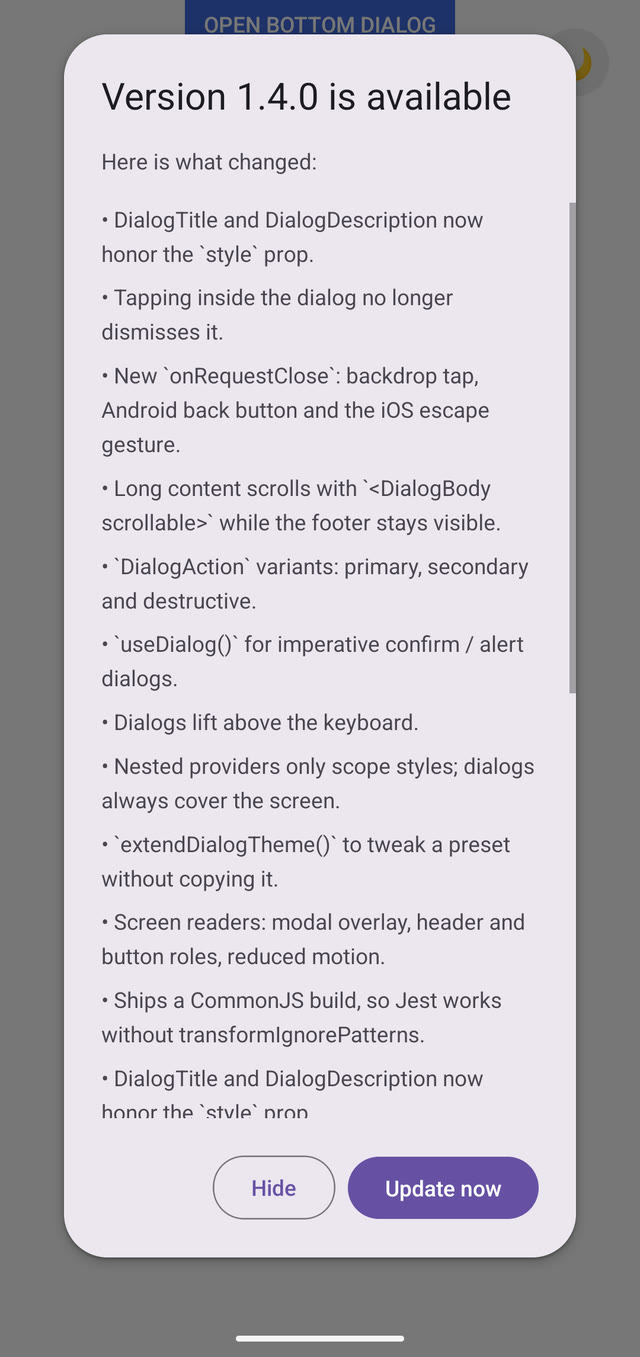 |
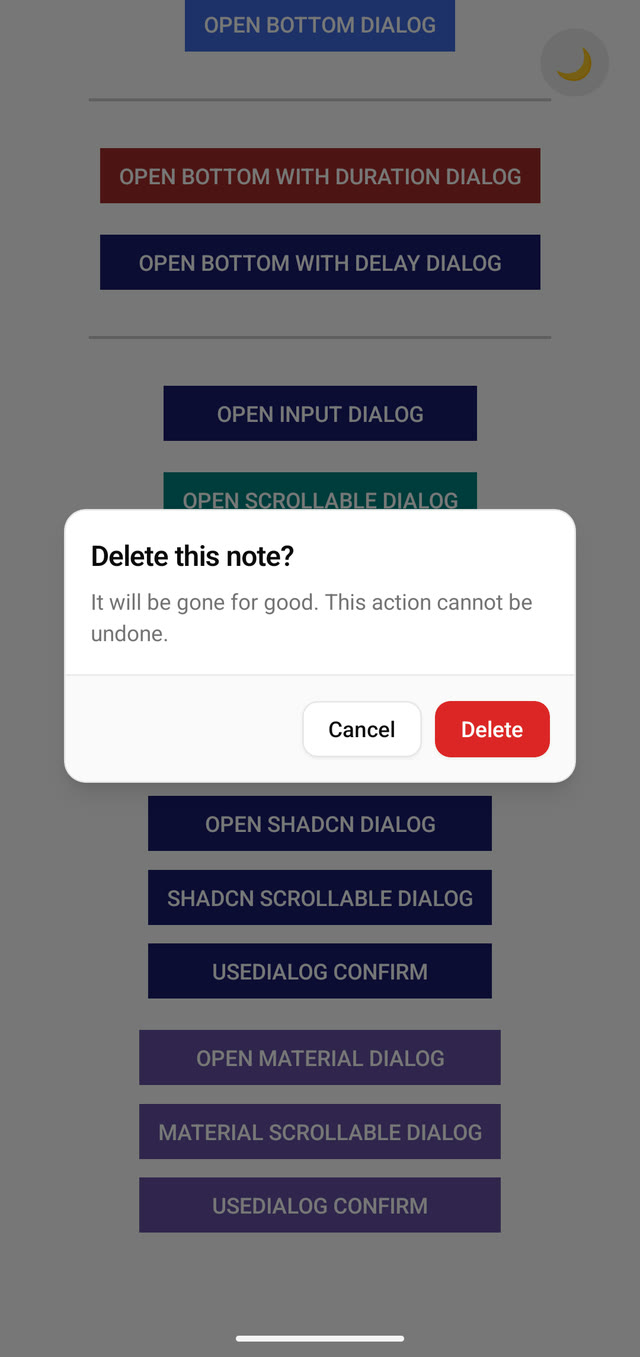 |
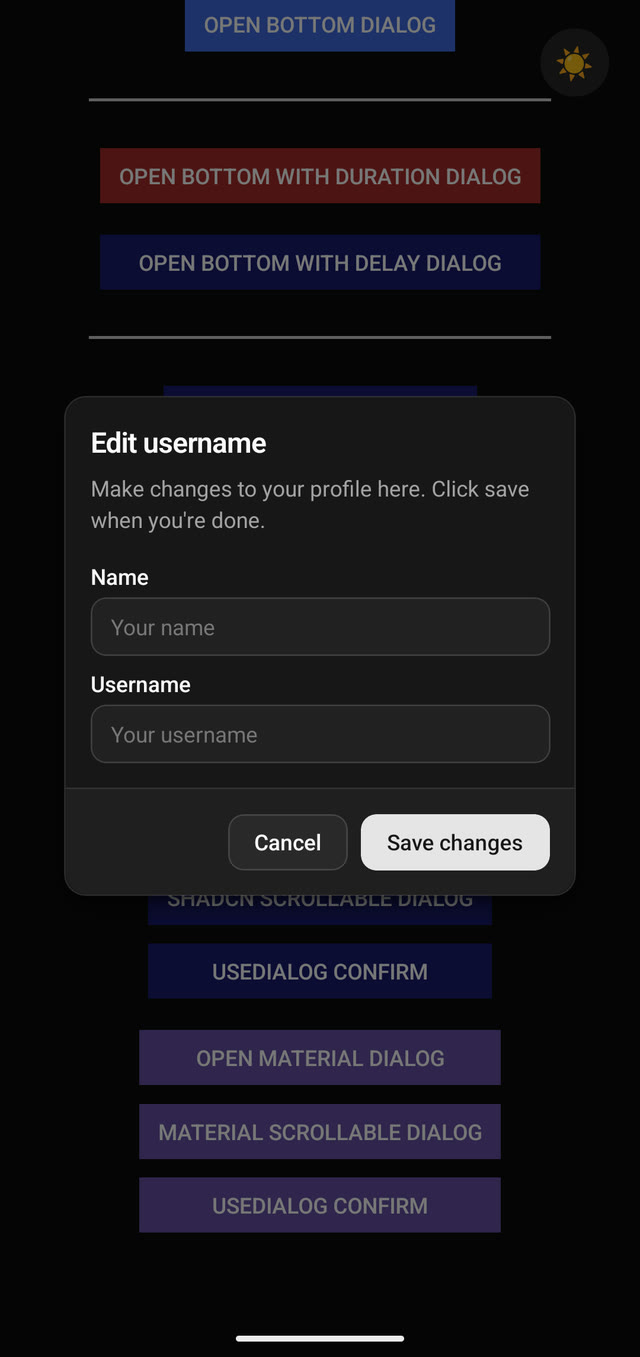
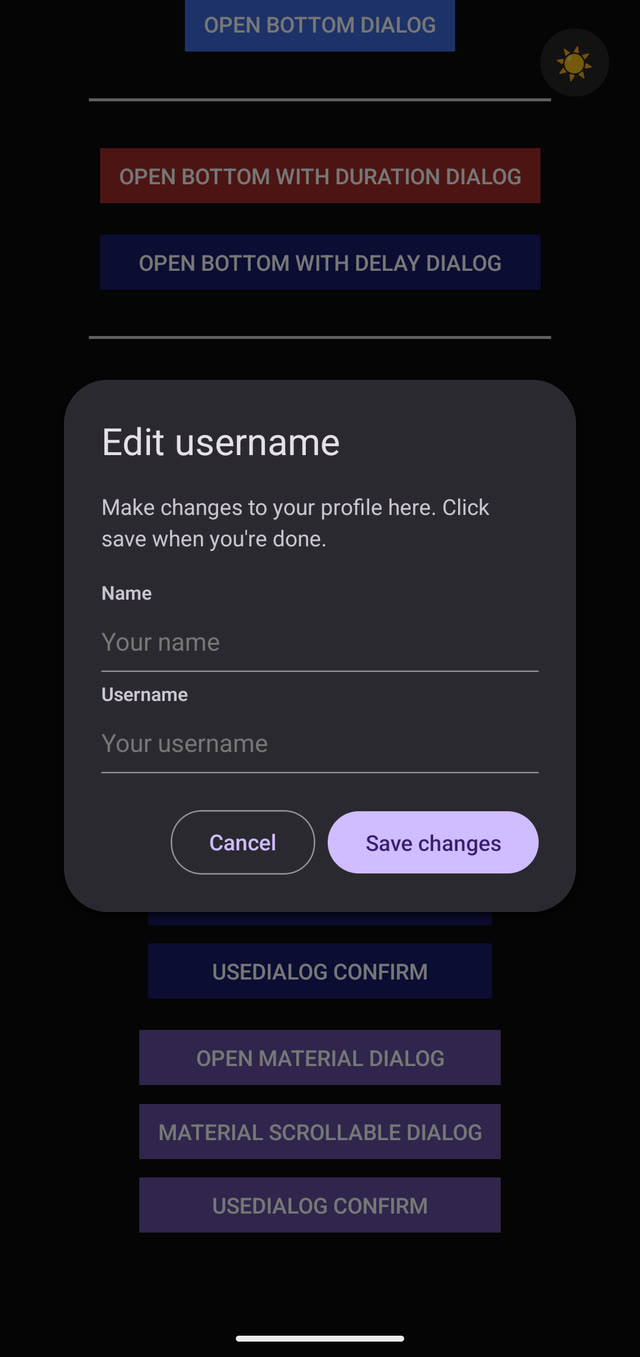
Two presets ship out of the box, each as a { light, dark } theme (see Dark mode), with primary, secondary and destructive action variants:
| Style | Code |
Shadcn/ui 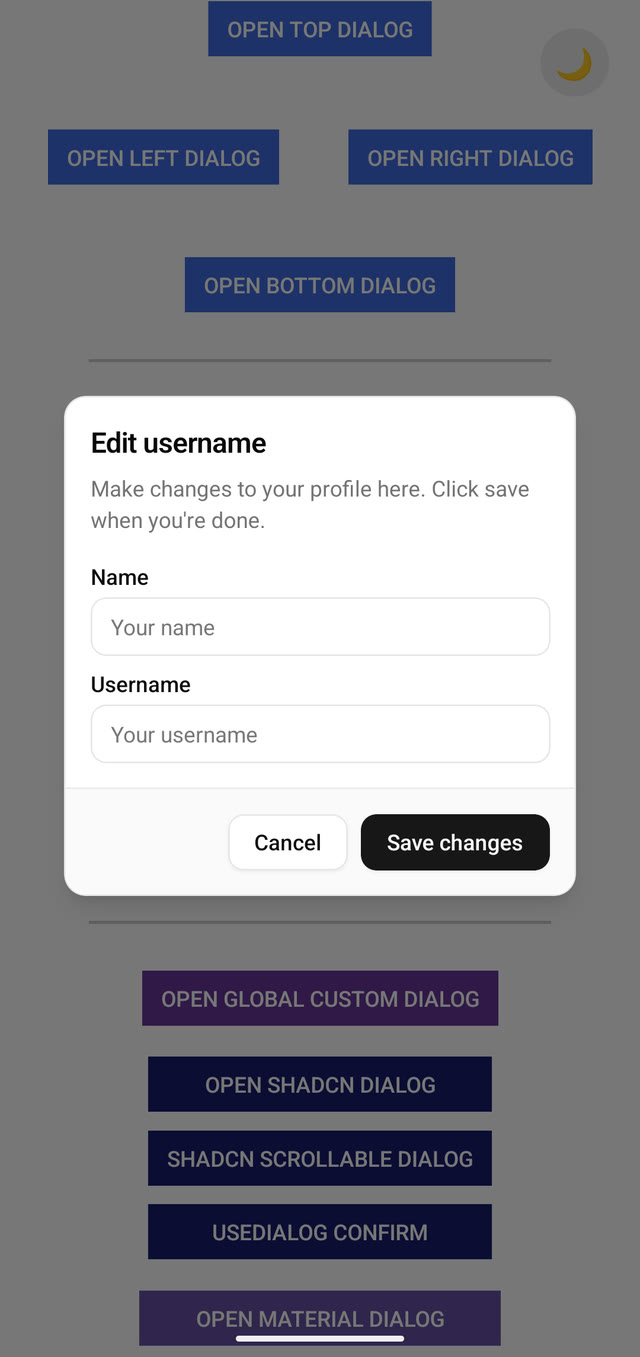 |
import {
  DialogProvider,
  shadcnStyle
} from "@ontech7/react-native-dialog";

export default function RootLayout() {
  return (
    <DialogProvider customStyles={shadcnStyle}>
      {/* ... rest of the code here ... */}
    </DialogProvider>
  )
} |
Material Design 3 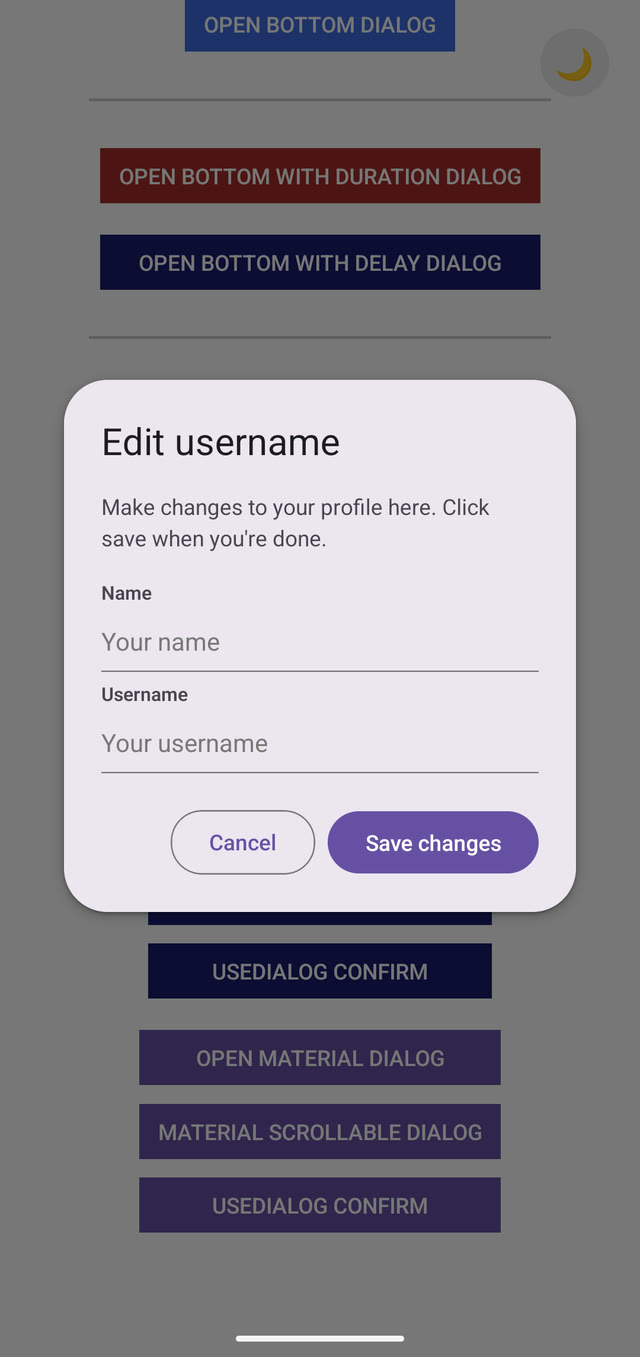 |
import {
  DialogProvider,
  materialStyle
} from "@ontech7/react-native-dialog";

export default function RootLayout() {
  return (
    <DialogProvider customStyles={materialStyle}>
      {/* ... rest of the code here ... */}
    </DialogProvider>
  )
} |
Both screenshots use the same dialog, with variant="secondary" on "Cancel" and variant="primary" on "Save changes". You can also pass your own DialogStyleConfig (see DialogStyleConfig), or start from a preset with extendDialogTheme.
extendDialogTheme deep-merges your overrides into a preset (or into your own styles), so you only write what changes. The preset itself is never modified.
import { extendDialogTheme, shadcnStyle } from "@ontech7/react-native-dialog";

// same overrides for light and dark
const theme = extendDialogTheme(shadcnStyle, {
  container: { borderRadius: 20 },
  action: { variants: { primary: { button: { backgroundColor: "#2563eb" } } } },
});

// or per scheme
const blueTheme = extendDialogTheme(shadcnStyle, {
  light: { title: { color: "#1d4ed8" } },
  dark: { title: { color: "#93c5fd" } },
});

<DialogProvider customStyles={theme} colorScheme={scheme}>{/* ... */}</DialogProvider>;A DialogProvider nested inside another one sets the styles for the dialogs below it, and by default also hosts them: they render where the nested provider is mounted. That's what you want inside a React Native Modal or a modal screen (e.g. expo-router presentation: "modal"), which the root provider can't draw over:
<Modal visible={visible}>
  <DialogProvider customStyles={shadcnStyle}>
    {/* dialogs opened here show on top of the modal */}
  </DialogProvider>
</Modal>
To only scope styles for part of a screen, pass host={false}: its dialogs render at the parent provider, covering the whole screen even when the nested provider sits inside a ScrollView or a sized view. Set host once: changing it at runtime remounts everything below the provider.
<DialogProvider customStyles={shadcnStyle}>
  {/* shadcn dialogs */}
  <ScrollView>
    <DialogProvider host={false} customStyles={materialStyle}>
      {/* material dialogs, still full screen */}
    </DialogProvider>
  </ScrollView>
</DialogProvider>customStyles accepts either a single DialogStyleConfig (light only, as before) or a { light, dark } theme. All built-in presets are themes. The active variant is chosen by colorScheme, which defaults to "light": you decide what drives dark mode (the OS, or your own in-app toggle):
import { useColorScheme } from "react-native";
import { DialogProvider, shadcnStyle } from "@ontech7/react-native-dialog";

// follow the OS appearance
const scheme = useColorScheme(); // "light" | "dark" | null
<DialogProvider customStyles={shadcnStyle} colorScheme={scheme}>
  {/* ... */}
</DialogProvider>;

// or follow an in-app theme toggle
<DialogProvider customStyles={shadcnStyle} colorScheme={isDark ? "dark" : "light"}>
  {/* ... */}
</DialogProvider>;shadcnStyle, dark |
materialStyle, dark |
|---|---|
 |
 |
Without colorScheme (or with anything other than "dark"), the light variant is used. You can also define your own styles, either as a theme or via the separate darkStyles prop:
<DialogProvider
  customStyles={myLightStyles}
  darkStyles={myDarkStyles}
  colorScheme={isDark ? "dark" : "light"}
>
  {/* ... */}
</DialogProvider>$ yarn add @ontech7/react-native-dialog
# or
$ npm install @ontech7/react-native-dialog
# or
$ pnpm add @ontech7/react-native-dialogYou need to import the DialogProvider and put it in your App.js or root _layout.tsx component. A Dialog rendered outside a DialogProvider renders nothing (and logs a warning in development).
// _layout.tsx
import { DialogProvider } from "@ontech7/react-native-dialog";

export default function RootLayout() {
  return (
    <DialogProvider>
      {/* ... rest of the code here ... */}
    </DialogProvider>
  )
}
Important
Mount the root DialogProvider at a full-screen root (your App.tsx / root _layout.tsx). The dialog overlay is rendered in-tree relative to the provider that hosts it, so its parent must fill the screen and must not be transformed or clipped (overflow: "hidden"). On React Native's New Architecture (RN 0.85+ / Expo SDK 56) a parent that collapses to zero size will make the backdrop disappear. For nested providers that only scope styles, use host={false} (see Nested providers).
An open dialog is modal for screen readers over the content of the provider that hosts it, so wrap your navigator with the root provider: headers and tab bars rendered outside it stay reachable by VoiceOver.
// Component.tsx
import { useState, useCallback } from "react";

import {
  Dialog,
  DialogAction,
  DialogHeader,
  DialogFooter,
  DialogTitle,
  DialogDescription,
  type DialogProps,
} from "@ontech7/react-native-dialog";

export default function Component(props: DialogProps) {
  const [open, setOpen] = useState(false);

  const handleOpen = useCallback(() => setOpen(true), []);
  const handleClose = useCallback(() => setOpen(false), []);

  return (
    <Dialog open={open} onRequestClose={handleClose} {...props}>
      <DialogHeader>
        <DialogTitle>Attention!</DialogTitle>
        <DialogDescription>
          This is a dialog.{"\n"}Please click one of the buttons below to close
          it.
        </DialogDescription>
      </DialogHeader>
      <DialogFooter>
        <DialogAction variant="secondary" onPress={handleClose}>
          Close
        </DialogAction>
        <DialogAction variant="primary" onPress={handleClose}>
          Confirm
        </DialogAction>
      </DialogFooter>
    </Dialog>
  );
}Pass onRequestClose and set open to false in it. It is called when the user taps the backdrop, presses the Android back button (the topmost dialog handles it first) or does the iOS accessibility escape gesture. Leave it out for a dialog that can only be closed by its own actions.
While a dialog is open, the Android back button never reaches the screen behind it (like React Native's Modal): without onRequestClose it simply does nothing.
Taps on the dialog's own content never close it, and taps are ignored while the close animation runs, so an action can't fire twice.
onPressOut still works but is deprecated: it's kept as a fallback, called for the backdrop, the back button and the escape gesture only when onRequestClose isn't set.
Dialog content renders at the provider that hosts it, so React contexts provided between that provider and the <Dialog> (e.g. a screen-level theme or i18n provider) aren't available inside the dialog. Put such providers above your root DialogProvider, or wrap the dialog's content in them. The library's own contexts (styles, useDialog) are passed through for you.
Add scrollable to DialogBody for content that can be taller than the screen (release notes, lists, terms). The body scrolls while the header and footer stay visible: with a scrollable body, the dialog is capped to the window height (minus the keyboard, when it's open). Without one, the dialog grows with its content.
<Dialog open={open} onRequestClose={handleClose}>
  <DialogHeader>
    <DialogTitle>What's new</DialogTitle>
  </DialogHeader>
  <DialogBody scrollable>
    {notes.map((note) => (
      <DialogDescription key={note}>• {note}</DialogDescription>
    ))}
  </DialogBody>
  <DialogFooter>
    <DialogAction variant="secondary" onPress={handleClose}>Hide</DialogAction>
    <DialogAction variant="primary" onPress={update}>Update</DialogAction>
  </DialogFooter>
</Dialog>DialogAction takes a variant: primary, secondary or destructive. Without it, an action uses the plain action style, as before. Variant styles come from the theme (action.variants); both presets define all three, and a theme without them still gets a sensible fallback (bold primary, dimmed secondary, red destructive).
const myStyles = {
  action: {
    button: { borderRadius: 8 },
    text: { color: "#111" },
    variants: {
      primary: { button: { backgroundColor: "#111" }, text: { color: "#fff" } },
      destructive: { text: { color: "#dc2626" } },
    },
  },
};For quick confirmations and messages, useDialog() gives you a themed, promise-based replacement for Alert.alert. Requests are queued and shown one at a time, with the styles of the nearest DialogProvider.
import { useDialog } from "@ontech7/react-native-dialog";

function DeleteButton({ onDelete }) {
  const dialog = useDialog();

  const handlePress = async () => {
    const confirmed = await dialog.confirm({
      title: "Delete this note?",
      description: "This action cannot be undone.",
      confirmLabel: "Delete",
      cancelLabel: "Cancel",
      destructive: true,
    });

    if (confirmed) {
      onDelete();
      await dialog.alert({ title: "Note deleted" });
    }
  };

  return <Button title="Delete" onPress={handlePress} />;
}
confirm() resolves true on confirm and false on cancel, backdrop tap or back button. Pass dismissible: false to require an explicit choice, and dialogProps to forward any Dialog prop (slideFrom, BlurComponent, …).
Dialogs move up when the software keyboard opens, so inputs and actions stay visible. For long forms on small phones, make the body scrollable so the dialog fits above the keyboard. Disable it with avoidKeyboard={false}.
- The topmost open dialog is modal for screen readers (VoiceOver / TalkBack don't reach the content behind it), also when dialogs from different providers are open at the same time. Open dialogs are layered in the order they opened.
- The iOS accessibility escape gesture (VoiceOver two-finger scrub) calls
onRequestClose, like the backdrop and the Android back button. DialogTitlehas the header role andDialogActionthe button role; adisabledaction is dimmed and reported as disabled.DialogInputuses itslabelas accessible name.- When the OS asks to reduce motion, slide and scale animations become a plain fade.
The package ships a CommonJS build next to the ES module one, so Jest can load it with the default React Native preset: no transformIgnorePatterns entry needed. Give your dialog a testID and its backdrop gets `${testID}-backdrop`:
await fireEvent.press(screen.getByTestId("my-dialog-backdrop"));Nothing was removed from the API, but a few things behave differently:
onPressOutis deprecated: rename it toonRequestClose. It keeps working as a fallback, and now it's also called for the Android back button and the iOS escape gesture. Taps on the dialog's own content no longer call it.- Android back button: while a dialog is open, it no longer reaches the screen behind it (it used to navigate back, or close the app, leaving the dialog open). It closes the dialog through
onRequestClose, and does nothing without it. - Nested providers inside a
ScrollViewor a sized view drew the overlay inside that view: addhost={false}to them (see Nested providers). - Presets: actions without a
variantkeep the plain look. Addvariant="primary"/"secondary"/"destructive"to get the filled, outlined and error buttons shown above.shadcnStylebuttons are now 36pt high,materialStyleones 40dp. - Peer dependencies: React >= 18 and React Native >= 0.71.
- Package layout: the build moved to
build/module(ES modules + types) andbuild/commonjs. Import from@ontech7/react-native-dialog, not from files insidebuild/.
See the changelog for the full list.
It's possible to add blur component to Dialog, such as expo-blur, @react-native-community/blur or @sbaiahmed1/react-native-blur.
By default it has a 25% intensity and a downsample factor of 8. They should be enough and not so much expensive on hardware acceleration.
import { BlurView } from "@sbaiahmed1/react-native-blur";

export default function Component(props) {
  return (
    <Dialog BlurComponent={BlurView} {...props}>
      {/* ... code here ... */}
    </Dialog>
  );
}
Use blurProps to forward (and override) props on your BlurComponent. This is how you configure blur per SDK without the library guessing. For example, with expo-blur on Expo SDK 56 the Android native blur needs the new blurMethod + blurTarget API:
import { BlurView } from "expo-blur";

<Dialog
  BlurComponent={BlurView}
  blurProps={{ blurMethod: "dimezisBlurView", blurTarget }}
  {...props}
/>;
Note
The library no longer forces experimentalBlurMethod="dimezisBlurView", which was deprecated in SDK 56 and now requires a blurTarget. On iOS the default blur works out of the box; for Android blur, opt in via blurProps.

| Name | Description |
|---|---|
| customStyles | Global styles for all components. A DialogStyleConfig (light only) or a { light, dark } theme (e.g. shadcnStyle) |
| darkStyles | Styles applied when the active scheme is dark (when customStyles is a single config). Falls back to the light ones |
| colorScheme | Active scheme. "dark" selects the dark styles, anything else (including null) the light ones. Default: light |
| host | Render the dialogs below this provider here (default: true). false on a nested provider that only scopes styles. Don't change it at runtime |
Also accepts every View prop (style, testID, …), applied to the dialog container.
| Name | Description |
|---|---|
| open | Show/hide dialog (default: true) |
| onRequestClose | Called on backdrop tap, Android back button and iOS escape gesture. Omit it to make the dialog non-dismissible (back is still blocked while open) |
| onPressOut | Deprecated, use onRequestClose. Fallback used for backdrop, back button and escape gesture when onRequestClose isn't set |
| onShow | Called once the open animation has finished |
| onDismiss | Called once the close animation has finished and the dialog is unmounted |
| avoidKeyboard | Move the dialog above the software keyboard (default: true) |
| tint | Backdrop background color. Possible values: light, dark (default: dark) |
| animation | Enable or disable animations (default: true) |
| duration | Duration of the animations (default: 200) |
| delay | Delay when opening the dialog (default: 0) |
| slideFrom | Animation slide-in. Possible values: none, bottom, top, left, right, center. (default: none). Only fades when the OS asks to reduce motion |
| BlurComponent | Possibility to add BlurView such as expo-blur, @react-native-community/blur or @sbaiahmed1/react-native-blur |
| blurProps | Props forwarded to (and overriding the defaults on) BlurComponent, e.g. { blurMethod: "dimezisBlurView", blurTarget } on Expo SDK 56 expo-blur |
| overlayColor | Scrim color over the backdrop (and over the blur, if any). Defaults from tint; e.g. rgba(0,0,0,0.5) for a darker overlay behind a blurred dialog |
View props. The footer lays its actions out in a row, aligned to the end, and wraps them when they don't fit.
Text props (style is applied to the text), plus:
| Name | Description |
|---|---|
| adornmentStart | Element rendered before the title |
| adornmentEnd | Element rendered after the title |
Text props.
View props, plus:
| Name | Description |
|---|---|
| scrollable | Render the content in a ScrollView that fits the dialog's max height (default: false) |
| scrollViewProps | Extra props for that ScrollView (e.g. showsVerticalScrollIndicator) |
TouchableOpacity props, plus:
| Name | Description |
|---|---|
| variant | primary, secondary or destructive. Omit it for the plain action style |
| textStyle | Style of the label |
| adornmentStart | Element rendered before the label |
| adornmentEnd | Element rendered after the label |
A disabled action is dimmed and reported as disabled to screen readers.
TextInput props, plus:
| Name | Description |
|---|---|
| label | Label shown above the input (and its accessible name) |
| wrapperStyle | Style of the wrapper around label and input |
| labelStyle | Style of the label |
| Method | Description |
|---|---|
confirm(options) |
Shows a cancel/confirm dialog. Resolves true on confirm, false otherwise |
alert(options) |
Shows a single-action dialog. Resolves when it's closed |
Options: title, description, confirmLabel (default "OK" / "Confirm"), cancelLabel (default "Cancel", confirm only), destructive (confirm only), dismissible (default true), dialogProps.
Every slot is optional. Each component merges its slot over its defaults, and its own style prop over that.
type DialogStyleConfig = {
  container?: ViewStyle; // the dialog box
  header?: ViewStyle;
  body?: ViewStyle;
  footer?: ViewStyle;
  title?: TextStyle;
  description?: TextStyle;
  input?: { wrapper?: ViewStyle; label?: TextStyle; textInput?: TextStyle };
  action?: {
    button?: ViewStyle;
    text?: TextStyle;
    variants?: {
      primary?: { button?: ViewStyle; text?: TextStyle };
      secondary?: { button?: ViewStyle; text?: TextStyle };
      destructive?: { button?: ViewStyle; text?: TextStyle };
    };
  };
};Besides the props of each component (DialogProps, DialogActionProps, DialogBodyProps, …), the package exports DialogStyleConfig, DialogStyleTheme ({ light, dark }), DialogActionStyle, DialogActionVariant, DialogController (what useDialog() returns), DialogConfirmOptions and DialogAlertOptions.
Here are simple examples:
- Expo Snack - Simple example
- Expo Snack - Input example
- Check example folder: it uses the library straight from
src/, so changes show up with fast refresh (cd example && yarn && yarn start)
Written by Andrea Losavio.